One order that flows
Songs, scripture, slides, videos, music, countdowns, cameras and macros in one list, under your own sections. Next walks straight through it.
 ScriptureLive StudioDownload for Mac
Songs, scripture, sermon slides, videos, countdowns and announcements — on the projector, the stage display, LED walls and your live stream. Built beside Scripture Live, so the verse the preacher reads is already on its way.
Apple Silicon and Intel · macOS 11 or later · Windows is on the way
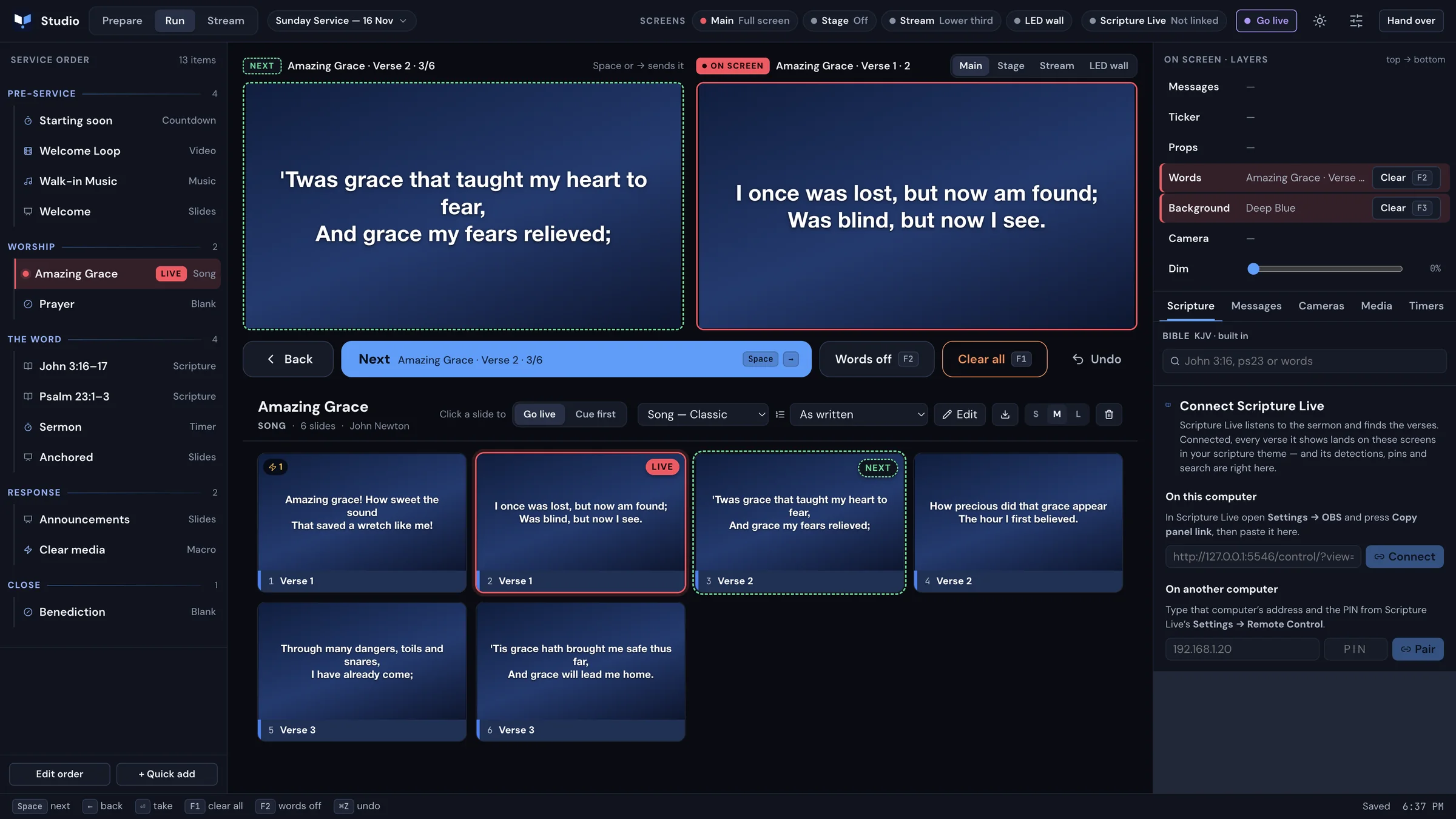
Three modes in one window, switched from the top bar. Each shows only what its job needs.
What comes next and what’s on screen, side by side. One big Next. Words off, Clear all and Undo always in the same place — and the show tools (scripture, messages, cameras, media, timers, macros) on the right.
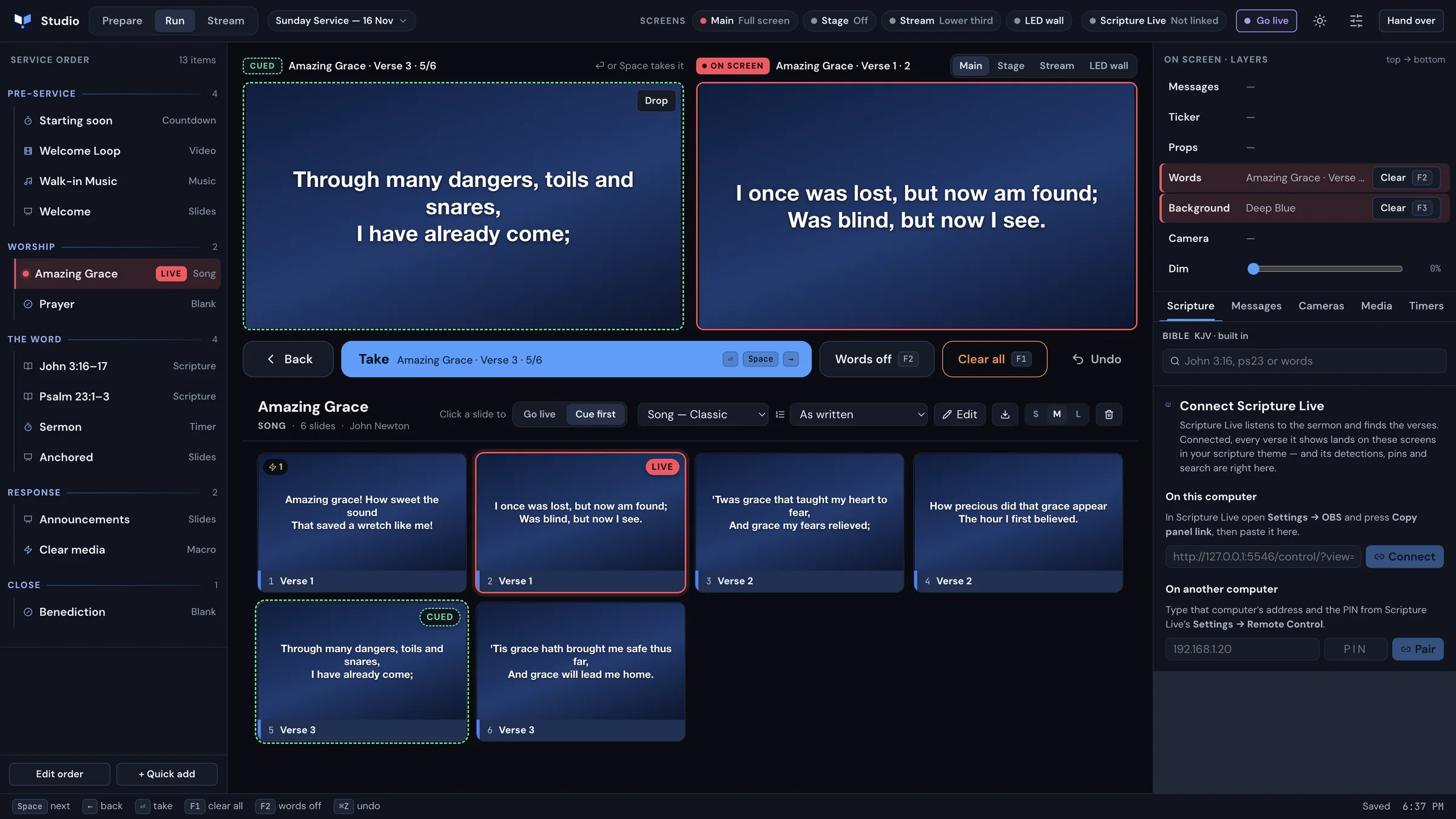
Songs, scripture, slides, videos, music, countdowns, cameras and macros in one list, under your own sections. Next walks straight through it.
See what Next will show before it shows. Cue a slide first, then Take it. Every change on screen can be undone with ⌘Z.
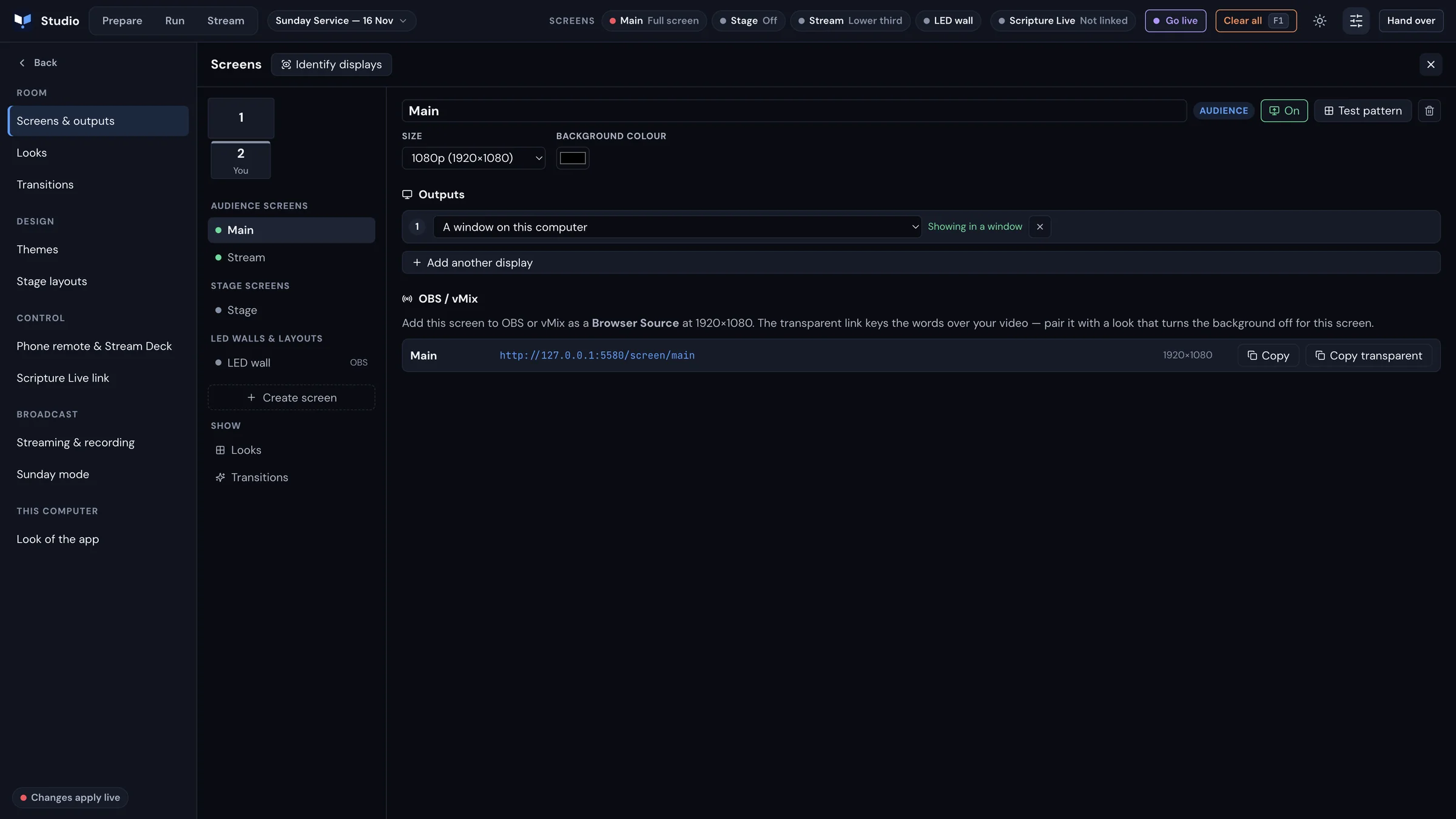
Projectors and TVs, a stage display for the preacher and band, and LED walls laid out on one big canvas — with OBS and vMix links for each.
YouTube, Facebook, TikTok, Twitch or your own server from the same screen, with recording and your sound desk mixed in.
PowerPoint, Keynote and PDF decks come in looking the way you made them — pictures, cards, icons and all.
Find any verse in a second. Linked to Scripture Live, the verse the preacher says is waiting for you to show — or goes straight up.
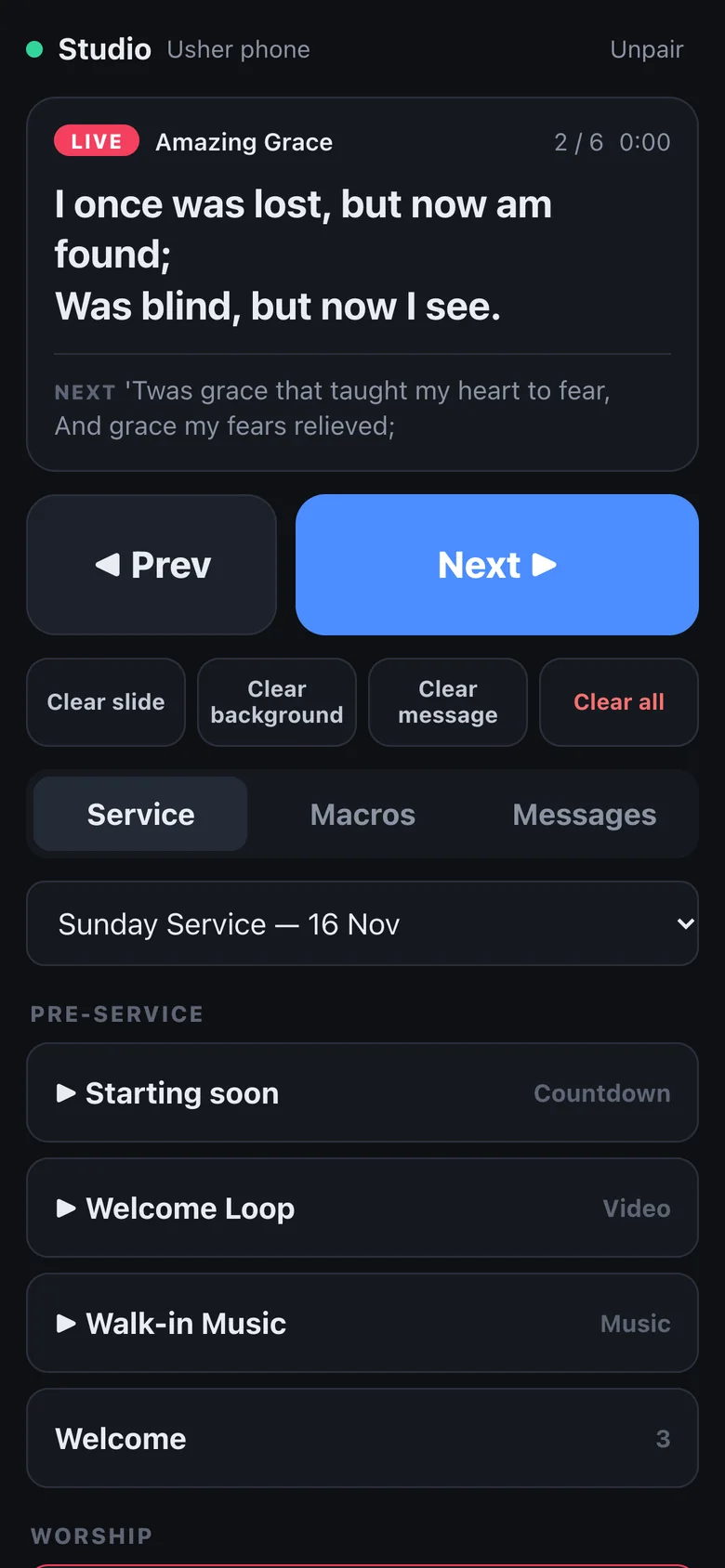
An usher’s phone can run Next and Back, clears and messages over Wi-Fi with a one-time PIN. Bitfocus Companion buttons work too.
Hand the service to a volunteer: big Back and Next, Words off and Clear all — set-up and editing locked away, with an optional PIN.
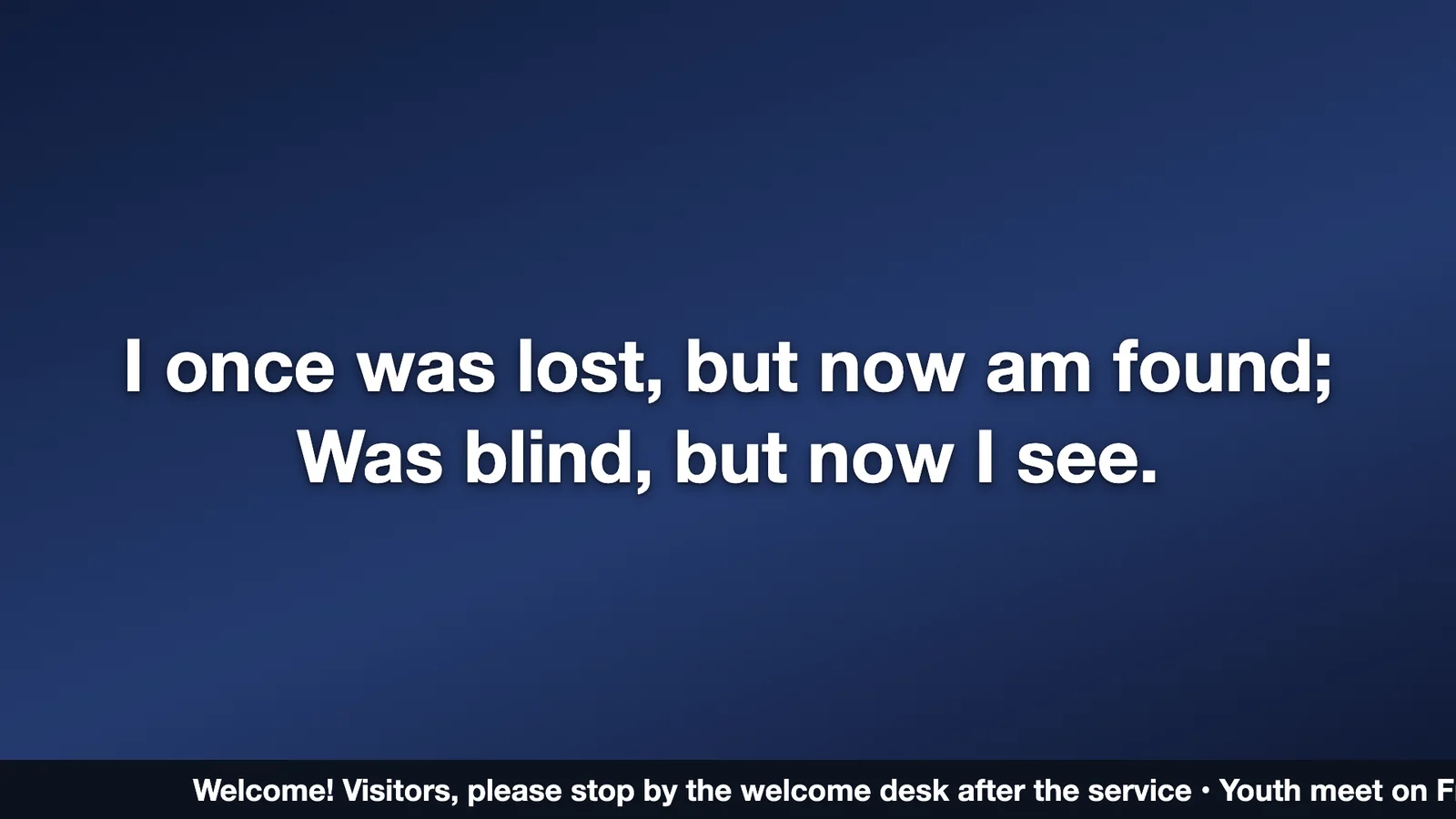
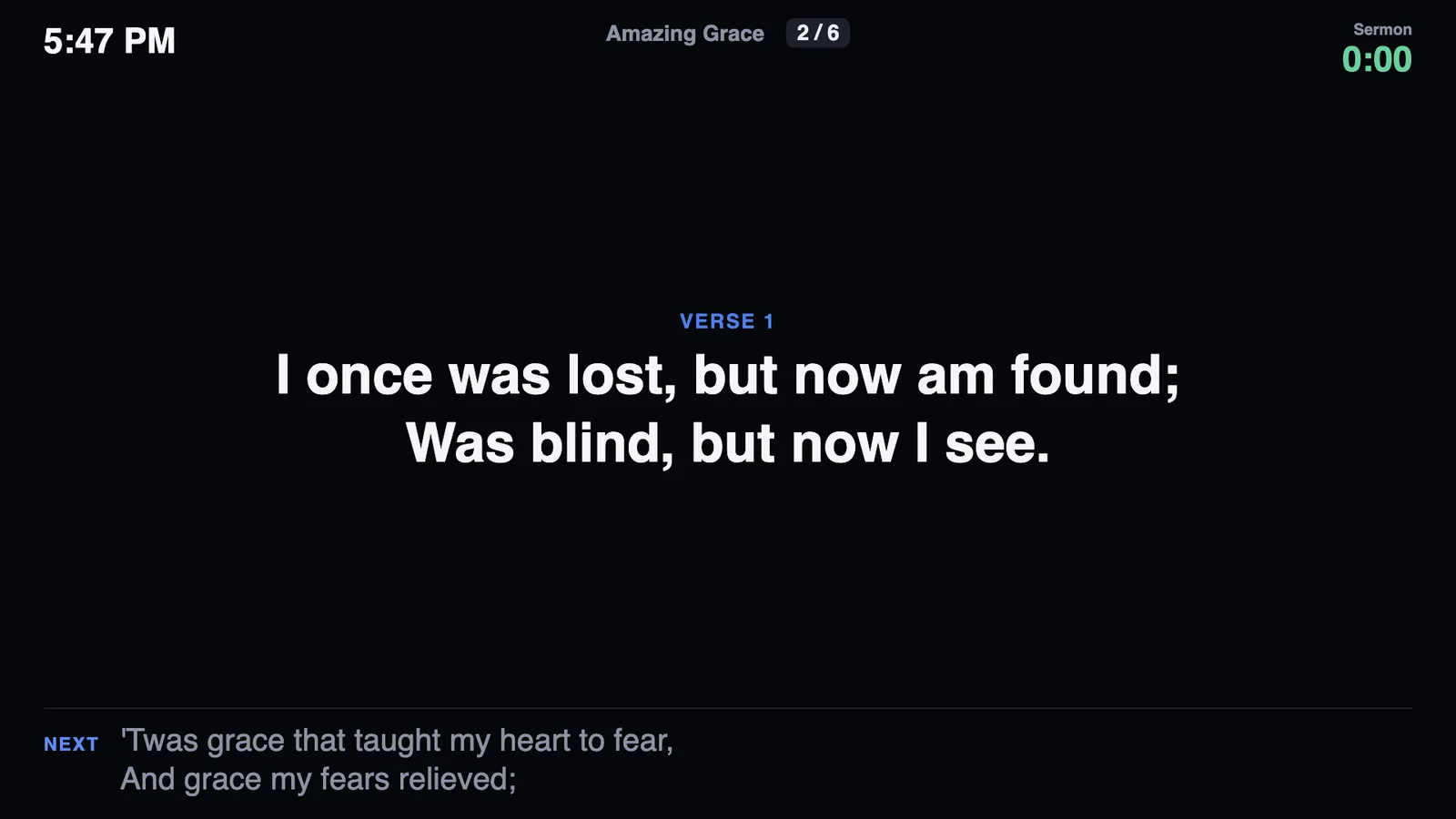
The same moment, three ways: words on the projector, the next line and the clock on the stage display, a lower third on the stream — set once in Setup.
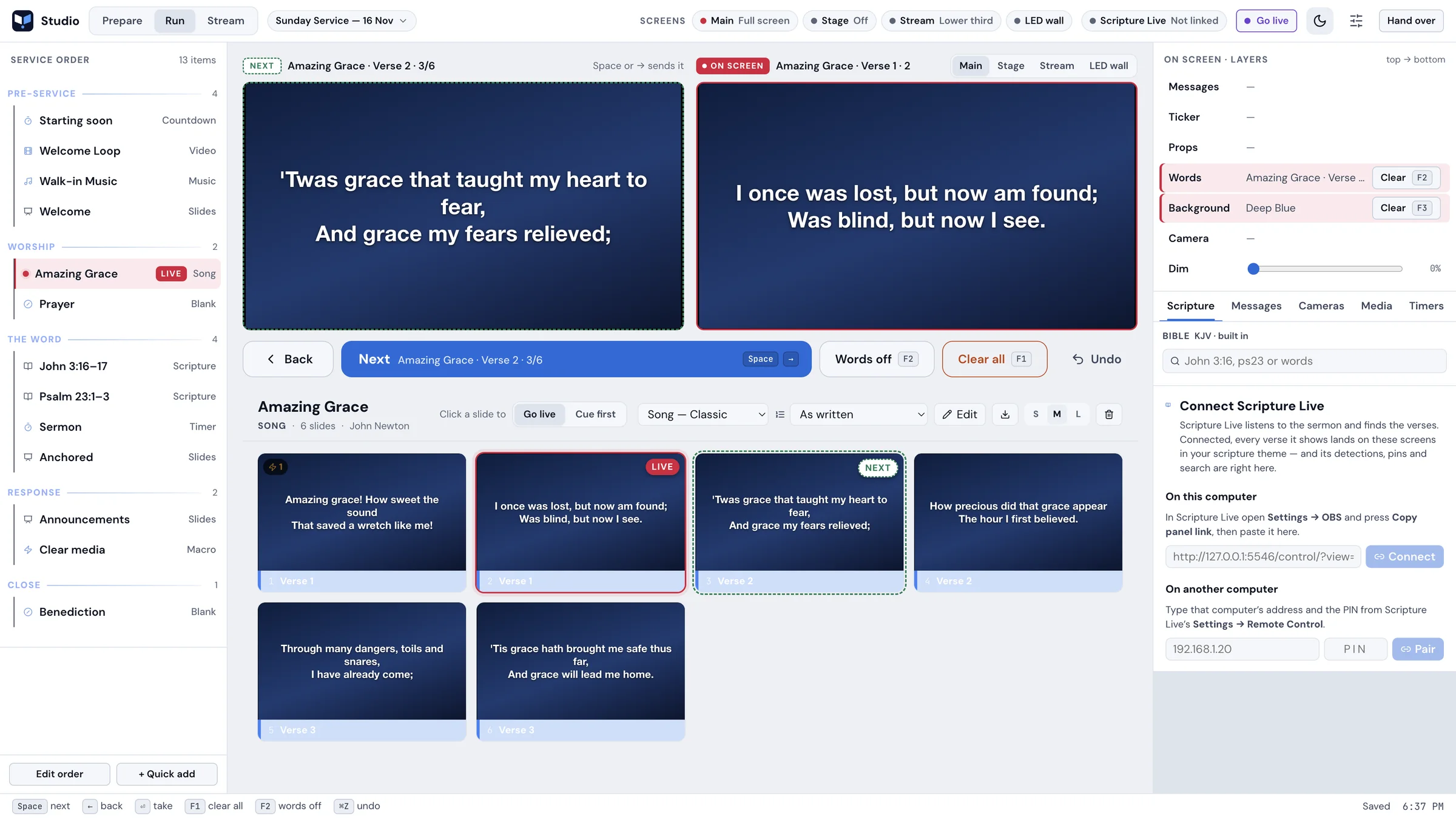
Scripture Live listens to the sermon and finds the verses as they’re read. Linked to Studio, each one lands in your scripture theme on every screen — or waits in Run for you to show it. The King James Bible is built in for everything else.
Dark for the booth, light for the office: the app follows your Mac, and the room’s screens never change with it.
Pair a phone with a one-time PIN and run Next, Back, clears and messages from anywhere in the room. When a volunteer takes the booth, Sunday mode hides set-up and editing and leaves the big buttons.
Preview release · 16 November 2026 · Mac (Apple Silicon and Intel), macOS 11 or later · 189 MB
Studio tells you when a new version is out. Updating keeps your library, screens and settings.
xattr -dr com.apple.quarantine "/Applications/ScriptureLive Studio.app"